
Instead of opening your custom song separately whenever you want to hear it, add the downloaded audio to Spotify through Local Files, then place it in a playlist with the other songs you love. This lets you listen on a device that has the file, but it does not publish your song to Spotify or make the audio playable for everyone who receives your playlist link.
The short version
- To add custom song to Spotify playlist, import the audio through Spotify Local Files, then add the track.
- FreeCustomSong creates personalized songs for people celebrating or honoring someone they love.
- Local Files playback requires access to the audio file on each listening device.
- Sharing a Spotify playlist does not share the custom audio file with its recipient.
Why This Matters
A song about your dad's terrible jokes belongs beside the music he played on every road trip. A song for your partner can sit between the track from your first date and the one you always sing together. At FreeCustomSong, we create personalized lyrics, music, and vocals around the person you want to celebrate or honor.
Getting that song into Spotify is a separate task. Local Files adds audio you already have to your own listening library; it is not a public upload service. That distinction matters most when your playlist is a gift.
If you prepare everything on your laptop and send the playlist to your wife, the custom track will not automatically become playable on her phone. Plan the listening device before the surprise, not after she presses play.
Before You Start
- Have the actual audio file. Download the completed song to your device. A webpage, preview link, or streaming shortcut is not an audio file. MP3 is a practical choice for this workflow because Spotify supports it as a local-file format.
- Install the Spotify app and check file access. Use the desktop app for the main steps below, not the web player. Keep the song in a folder you control and allow Spotify to access it when your operating system asks.
- Choose the final listening device now. Local-file playback depends on the file being accessible on that device. A playlist link alone does not transfer it, and a cloud-storage placeholder is not the same as a downloaded file.
For a surprise, use a neutral filename until the reveal if someone else might see your screen. Keep a clearly named final copy elsewhere so you do not accidentally import a draft.
Choose the Right Route Before Importing
There are two different goals people mean when they ask how to put a custom song on Spotify. Choose the one that matches what you need.
| Route | Best for | What it does | Main limitation |
|---|---|---|---|
| Spotify Local Files | Personal listening and a playlist on a prepared device | Plays an audio file stored on your device alongside Spotify tracks | Other listeners do not receive the audio through your playlist link |
| Public music distribution | A release intended for listeners to find in Spotify's catalog | Delivers a recording to streaming services through a music distributor | Requires the necessary rights and a separate release process |
For a private gift playlist, start with Local Files. You do not need to turn a deeply personal recording into a public release just to hear it between familiar songs.
If public discovery is your goal, stop before treating these instructions as a release guide. Possessing a recording does not, by itself, establish every right needed to distribute it. Check the applicable song terms and permissions before submitting anything to a distributor.
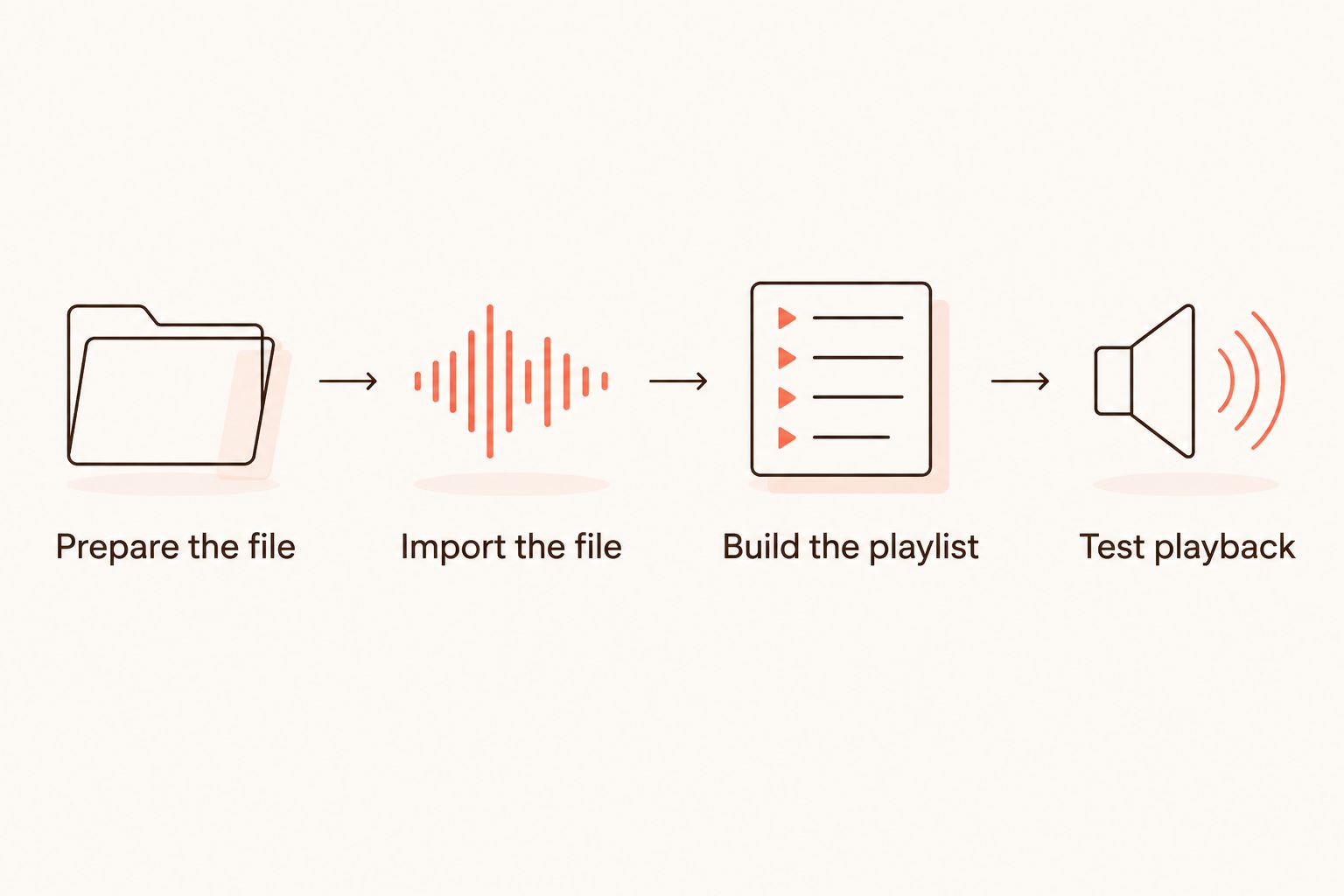
Prepare the File
The easiest setup begins with one identifiable audio file in a stable location. Do this housekeeping before opening Spotify's import settings.
- Download the completed recording to your computer.
- Open it in your computer's usual audio player and listen past the opening. Confirm that it is the intended version and plays correctly.
- Put it in a dedicated music folder rather than leaving it among temporary downloads.
- Give the file a recognizable name, such as the song title and recipient's first name. Keep the original file extension unchanged.
- If the file lives in cloud storage, make sure the actual audio is downloaded locally, not represented only by a placeholder.
Expected result: You can find the recording in your file manager and play it without opening the original delivery page.
Renaming a file from another format to .mp3 does not convert its audio. If Spotify cannot read the format, obtain a supported audio version or convert a copy using an audio converter. Preserve the original recording.
Also distinguish the filename from the song's embedded information. Spotify can display a track title or artist taken from the file's metadata, so the visible name might differ from what you see in your folder.
Import the File
Use Spotify's desktop app to point the library toward the folder containing your recording. The controls below refer to the desktop Local Files workflow; surrounding menu organization can differ between app versions.
- Open Spotify and select your profile picture, then Settings.
- Find the Local Files section and turn on Show Local Files.
- Under Show songs from, enable the relevant existing source or select Add a source.
- Choose the folder containing your song. Select the folder rather than trying to submit a webpage or playlist URL.
- Open Your Library, then Local Files, and find the recording.
Expected result: Your custom recording appears in Local Files and plays when you select it.
If Spotify shows an unfamiliar title, compare it with the recording's embedded metadata before assuming the import failed. Play the track and listen for a recognizable lyric.
Keep the source folder where it is. Moving the recording to another folder, renaming folders, or disconnecting an external drive can break Spotify's access to the audio even though a playlist entry remains visible.
Build the Playlist
Once the recording plays from Local Files, add it to the playlist you want to use. Importing and playlist placement are separate steps.
- Find the recording in Local Files.
- Right-click the track and choose Add to playlist.
- Select an existing playlist, or create one first and then add the recording.
- Open the playlist and confirm that the custom track appears.
- Put the song in the intended position. Turn off Shuffle when you want the playlist to follow that order.
Expected result: The custom recording appears alongside your other selections and plays from the playlist on that computer.
For a gift, think about the transition rather than simply filling the playlist. A familiar song can introduce a shared memory; your custom recording can answer it. Leave enough room around the personal song for the listener to notice the words.
Avoid an opening that gives away the surprise if your partner will see the playlist before listening. The playlist title, description, and track names can reveal as much as the lyrics.
Test Playback
A successful import on your computer is not proof that the recording will play on the device you plan to hand someone. Test the actual setup.
- Open the playlist on the intended listening device.
- Select the custom recording directly rather than assuming the playlist will reach it.
- Listen through the opening and a recognizable section of the lyrics.
- Check the intended headphones, speaker, or audio connection.
- If you need offline playback, test with the internet connection off. Any Spotify catalog tracks also need to meet Spotify's separate download requirements.
Expected result: The intended device plays the correct recording through the intended audio output.
Use three checks before the reveal: correct recording, correct device, correct output. A track title visible in a playlist is not enough.
Add the Custom Song Directly on Your Phone
If you mainly listen on your phone, you can use Spotify's mobile local-file support instead of treating the computer's playlist entry as a transferred recording. The phone needs access to the audio itself.
Android
Save the audio file to local storage on the phone. In Spotify's settings, find the local-audio controls and enable Show audio files from this device. Grant the audio or media permission Android requests, then look for the recording under Your Library and Local Files.
Play the recording there before adding it to your playlist. If you transferred the file through a cloud-storage app, check that you saved an actual local copy rather than only making a link accessible.
iPhone
Enable local-file playback in Spotify's settings and grant the requested access. In the Files app, use On My iPhone and the Spotify folder for the audio file, then look for the recording in Spotify's Local Files collection.
If the Spotify folder is not visible, enable the local-file setting and reopen the Files app. Keep the audio on the phone rather than relying on an iCloud-only copy.
For either phone platform, add the playable local track to the playlist and test it there. Do not assume that importing the recording on your computer has also placed it on your phone.
Troubleshooting
The song never appears in Local Files
Confirm that Spotify is looking in the folder where the audio actually sits. Check the file type, local download status, and file-access permissions, then close and reopen Spotify after correcting the source.
On desktop, check Show Local Files and the selected folders under Show songs from. On mobile, check the local-audio setting and the operating system's media permissions.
The song is visible but gray or unplayable
A playlist entry can remain after the underlying audio becomes inaccessible. Restore the file to its original location or import it again from its current folder.
If the problem occurs only on another device, check that device for the audio file. Seeing the same playlist does not mean both devices have the recording.
The recipient cannot hear the custom track
Sending the playlist link did not send the audio. Give the recipient the recording through an appropriate file-sharing method, subject to the song's terms, and help them import it locally.
For a surprise, the simpler arrangement is to play the prepared playlist from your own tested device. You can explain the recipient's personal listening setup afterward.
Spotify shows the wrong title or duplicate entries
Inspect the audio file's embedded title and artist information. A filename change alone does not necessarily change those fields.
Keep one clearly identified final recording in the imported folder. After removing obsolete copies from that source, remove their old playlist entries and add the intended track again.
The track plays, but the surprise starts at the wrong moment
Check Shuffle, the playlist order, and Spotify's Crossfade setting. Crossfade can overlap the end of one recording with the beginning of the next.
For a lyric-led reveal, test the transition with crossfade off. Also check that the sound is going to the speaker or headphones you intended, not another connected device.
Customize Your Workflow Around the Person
The technical setup is only the container. The reason to make the playlist is the person listening.
At FreeCustomSong, we turn your memories into personalized songs with custom lyrics, music, and vocals. Bring the details that make someone recognizable: the phrase your mom repeats, the small kindness your husband never mentions, or the memory you want to keep close.
For an anniversary, arrange the playlist around your shared story rather than release dates. For a birthday, mix meaningful favorites with songs that make the recipient laugh. For a memorial, choose a listening setting where the person can pause or stop without feeling watched.
If the recording is also intended for a wedding, treat the event setup as its own job. Our custom song to first dance recording guide covers the adjacent use case. Keep a separate audio copy ready rather than making the event depend entirely on your Spotify library.
FAQ
Can I add a custom song to a Spotify playlist?
Yes. Import a supported audio file through Spotify Local Files, then add the track to a playlist. The recording must remain accessible on the device playing it.
Will my custom song appear in Spotify search?
No. Importing a recording through Local Files does not publish it to Spotify's public catalog. Public release requires a separate distribution process and the necessary rights.
Can someone else hear my custom song through a shared Spotify playlist?
Not from the playlist link alone. The other listener needs access to the audio file and a working local-file setup on their own device.
Do I need Spotify Premium to use Local Files?
Spotify supports local-file playback without requiring Premium. Downloading Spotify catalog tracks and other account features have separate requirements, so test the complete playlist under your own account.
Can I add the song using the Spotify web player?
Use the Spotify desktop or mobile app for local-file playback. The web player is not the route for importing your custom recording.
Why does my custom song work on my laptop but not my phone?
The phone probably does not have access to the audio file, even if it displays the same playlist. Save the recording locally on the phone, enable local-audio access, and test it from Local Files.
Does FreeCustomSong put my song on Spotify for me?
Creating a personalized song and adding it to Spotify are separate tasks. This guide explains how you can use a downloaded recording with Spotify Local Files; local importing does not create a public release.
Related Guides
- Best custom anniversary song services
- Best personalized wedding song gifts
- Best custom memorial song services
One Last Thing
The most useful backup is the audio file itself. Keep a copy you can open outside Spotify on the same device. If the playlist gives you trouble at the important moment, you can still press play and let the words do their job.
Start with the memory you want someone to hear. We'll help you turn it into a song, then you can give it a place among the music that already means something to you.
Turn your memories into a song
Create a personalized song for someone you want to celebrate or honor.